Monday, August 30, 2010

My life with Ben, episode 3

In the previous two episodes, I've told you how I've carried the Ben Nanonote along for several weeks, just to see how it behaves in the real world. In short, it has been used as an MP3 player, a small wordprocessor and as a miniature system console.

But since it also has a capable PDF viewer I wondered whether it could free me from printing those papers just before a meeting. You know, these entries in your schedule that you become aware of just five minutes before they start. In the meanwhile you have to collect all the documents required from various sources and locations and quickly send them to the printer since your regular laptop is out of juice or its use during the meeting is - if you happen to work for certain technologically conservative companies - "undesired".

At that moment you will notice that a "printer queue" refers to the number of persons waiting before their print jobs have finished and if it doesn't that's because the device in question is either out of paper or simply jammed beyond repair.

So wouldn't it be nice if you could simply put all these documents on your Ben Nanonote and carry them along? Sure it would. The only thing keeping you from doing that is that your boss probably selected that "other" Operating System and ditto Office suite.

Fortunately, most companies offer PDF printing capabilities nowadays, so you can save your documents in that format. If not, there are several FOSS or freeware utilities you can use like FreePDF, CutePDF or PDFCreator. Note the latter has been accused of installing spyware, despite its FOSS license. If you're using any FOSS productivity programs, you probably have that capability already. Anyway, whatever method you use, generating PDF files is usually a matter of seconds.

The big question is, how do you get them to your Nanonote that quickly. USB doesn't work on MS-Windows - unless you're only interested in charging the battery of the Nanonote - and chances are your uSD card contains only ext2 file systems. But help is underway, because it is possible to read and write ext2 file systems under that "other" Operating System by using Ext2IFS (freeware) or Ext2FSD (FOSS).

Both are very easy to install under XP, but I had a bit more luck with Ext2FSD. Ext2FSD is definitely recommended when you use one of the latest incarnations of that "other" Operating System, because Ext2IFS hasn't been updated since late October 2008.

For accessing the uSD card I use an SD card adapter, although USB adapters are also available. First I installed Ext2IFS, rebooted, inserted the uSD card and started Explorer. Then I uninstalled it and repeated the same procedure with Ext2FSD. Both times I was asked whether I wanted to format my uSD card - which I didn't, of course. Ext2IFS was consistent in its behavior, but Ext2FSD complied when I accessed the drive with MinGW bash. After that, Ext2FSB worked flawlessly, reading and writing the ext2 file system and unmounting it cleanly.


I must note I've been pretty careful, shutting the Ben down entirely before inserting or removing the uSD card. You can probably mount and unmount it while in operation, but because booting the Ben is a matter of seconds I simply didn't want to take the risk.

In a previous episode I already reviewed "nupdf", which is a pretty decent PDF viewer - although not entirely bugfree. It is very well suited for reading office documents, which are usually fifteen pages or less. You can even keep two "nupdf" instances in memory concurrently and switch between them by pressing [CTRL]-[ALT]-[Fx]. However, "nupdf" does not blank the screen automatically (like "gmu"), so you might drain the battery a little bit quicker than usual.


I must admit I haven't tried using "nupdf" for reading entire books, but I wonder whether it is well suited for that purpose. You'll either have to strain your eyes to read the small, grainy print or scroll from the left to the right all the time. Whatever choice you make, I can assure you it is not going to be a comfortable read. Note this is hardly the fault of the developer, but rather a logical consequence of using a device with these limitations for this kind of task.

Still, for a quick peek you can't go wrong, especially since you can keep "hnb" open in another console to make a quick note. If you keep your uSD card synchronized with your desktop, you're prepared to go to any meeting at any time. Never mind the print queues..

Sunday, August 29, 2010

My life with Ben, episode 2

I've had a serial terminal connected to my Linux box for as long as I can remember. My brother worked for a company that was phasing them out at the time, I told him I wanted one (I was always a sucker for useless hardware) so I got one for free. It sat on my dinner table for years and then I switched to Linux. Hooking it up was (and is) quite easy. You simply put this entry in your inittab:
S0:12345:respawn:/sbin/agetty -L 38400 ttyS1 wy60-25

And make an entry in /etc/securetty. Done. Then I log in and enter:
tail -f /var/log/messages

This may seem trivial, but it has saved my life numerous times, e.g.
  • .. when X becomes unresponsive because a runaway program is eating up my swap space;
  • .. when X crashes for some reason and locks up my terminal;
  • .. when my harddisk is starting to give up and throws all kinds of messages all over the place.
Once I was able to quickly make a backup, losing only a few trivial files. After a reboot the disk was gone forever.

Unfortunately, my old Wyse 25 is slowly giving up. All of a sudden horizontal or vertical bars strike out all the characters on screen and only a sharp tap on the left side of the terminal helps - sometimes. I have been looking for a replacement, but even on eBay they're scarce. Wyse has stopped producing them altogether.


The closest thing you can get are thin clients. Although they're not too expensive they're a hell to setup properly. Note I'm not a network expert and I really don't need a GUI. All I need is a bunch of scrolling /var/log/messages and an occasional [CTRL]-C halt[ENTER]. In other words, a thin client: that's overkill.

Then I got my Ben Nanonote. The Ben features a serial port, but unfortunately you need to solder your way into that. That's a tall order from a guy who can't even properly glue the poor things feet back on without making the device an inseparable part of his body. But the Ben also features an Ethernet-over-USB gadget. I could use that one to connect it to my OpenSuSE machine.

Ok, it probably can be done, but I got two problems here. One, I don't know much about networking. Two, I'm paranoid where security is concerned. I saw sshd was running, so I tried to login.
ssh root@192.168.254.100

Surprise, it didn't work. A quick look at dmesg showed me why:
SFW2-INext-DROP-DEFLT IN=usb0 OUT= MAC=xxxx SRC=192.168.254.101 DST=192.168.254.100 LEN=52 TOS=0x00 PREC=0x00 TTL=64 ID=27103 DF PROTO=TCP SPT=49762 DPT=22 WINDOW=5840 RES=0x00 SYN URGP=0 OPT (yyyy)

It was killed by the firewall before it even got there. I never like fiddling around with my machine - especially when I barely know what I'm doing - but I gave it a try. I started YaST, selected "Security and Users" and then "Firewall". Then I selected "Interfaces" and placed "usb0" in the DMZ.


Now I had to allow Ben to use ssh. I selected "Allowed services" and then "Secure Shell Server".


Finally, it was time to wrap it all up and try again. I finalized the configuration and was presented with a screen, showing all my changes.


When I tried to login, it still didn't work, but at least I got through.
SFW2-INdmz-ACC-TCP IN=usb0 OUT= MAC=xxxx SRC=192.168.254.101 DST=192.168.254.100 LEN=52 TOS=0x00 PREC=0x00 TTL=64 ID=460 DF PROTO=TCP SPT=49763 DPT=22 WINDOW=5840 RES=0x00 SYN URGP=0 OPT (yyyy)

Finally, I turned to /etc/ssh/sshd_config and changed a few settings. Now, this was dangerous territory..
Port 22
AddressFamily any
ListenAddress 192.168.254.101

Then I restarted ssh.
/etc/init.d/sshd restart

But all I got was:
bind: Cannot assign requested address

Duh? Ok, to cut this story short: I went from 192.168.254.101 all through 192.0.0.0, but all with the same result. Finally, 0.0.0.0 worked. Don't ask me why..

I went to Gibson Research Center to test the outside defenses. All ports still on stealth. Fine. I know my ADSL modem has a firewall too, but you can never be too sure..

So, this is how my Ben Nanonote became a console. If my Wyse 25 finally goes to that big computer center in the sky, the only thing I have to do is to order another Ben Nanonote and hook it up.


Sure, there are still a few things left to figure out. Sometimes I have to go through the entire firewall dialog, because it seems to have "forgotten" all about the DMZ. The connection with the Ben is not set up automatically at startup and finally, a professional would have made a far more better job of setting up the entire configuration. But it works! And that's good. I hate repairing filesystems.

Saturday, August 28, 2010

My life with Ben, episode 1

I've been using (and abusing) my Ben Nanonote daily now for several weeks, simply to find out whether this little machine is just a little gadget or really a useful device. In the meanwhile, I found out several things:
  • The feet will come off, so maybe you'd better fix that before it happens, because the changes are you'll never find them again. Using it without feet is not an option, because it will wobble. Which is very uncomfortable and irritating.
  • When the screen fades to white, it hasn't given up. Relax, hook it up and it will recharge. The battery is dead, not the screen.
  • I will boot the Nanonote when I'm on the tramway and it will usually still have juice when I get home eight hours later, unless the screen has been heavily used - at least that is the impression I have. I haven't tested this under controlled circumstances yet.
  • Unlike the iPad, it does have multitasking. You can switch between consoles by pressing [CTRL]-[ALT]-[F1], [CTRL]-[ALT]-[F2], [CTRL]-[ALT]-[F3], etc. Even when you're using a graphics application. However, if you try to use two heavy-load applications at the same time (e.g. Gmu), strange things may happen, including a spontaneous shutdown.
So, you may ask, what am I using the Nanonote for all day? Well, first of all, Gmu makes it an excellent Ogg player. The Nanonote comfortably fits in ones pocket and has an excellent sound quality. The uSD card provides lots of space, so you can take all of your favorite songs along with you. Second, the "hnb" (a sort of KJots) is always just a few keystrokes away, so you'll never have to search for a piece of paper while on the phone. You can even create a spreadsheet using "sc" or 4tHs own "Tiny Commandline Spreadsheet".

I clearly stated "create", not "maintain". Why? Well, IMHO the screen of the Nanonote is just too small to manipulate large amounts of data. You simply don't have any overview. E.g. a line is only forty characters wide, so you can only see three columns at the time. I haven't worked with such small screens since the ZX Spectrum. And even in those days, I didn't feel a spreadsheet was a viable option on that machine.

Don't understand me wrong: it's alright to set up a spreadsheet while "in the field", but at some point in time, you want to transfer that file to a full blown workstation and continue work there. Fortunately, "sc" allows you to export a spreadsheet to a CSV-like format. "TCS" even supports exports to .FODS (OpenOffice), .XLS (MS-Excel), and .KSP (KSpread). "TCS" will be part of the up and coming 3.61.0 release of 4tH.

The same applies to wordprocessing: you simply don't want to maintain a large document on the Nanonote. But what you want to do is to create a document while on the road. I'm a regular columnist of the Dutch "IT Infra" magazine, so I really want to use these lost moments to do some work.

And there the trouble began: there is no wordprocessing package available for the Nanonote. Just a few editors. However, while looking for a "curses" based wordprocessor I stumbled upon "txt2tags", a formatting program written in Python - which is supported by the Nanonote.

The big advantage of "txt2tags" is that you don't have to bother yourself with technicalities like setting margins or papersize, you just type and add formatting instructions like section, bold, bulleted list, link, image, etc. When you're done, you simply render the document in the required format, like HTML, TeX, etc. Very much like how my favorite LyX works.

Now the quest for a suitable editor began. Fortunately, a list of suitable editors was available, most of which were already available on the Nanonote. "vi" was out of the question, because - although I like it for editing source files - it doesn't give me a wordprocessor feel. "nano" just fell short, especially the Nanonote implementation. So I decided to use "joe". "joe" has a "Wordstar" legacy which I do not particularly like (I'm still trying to get the knots out of my fingers while trying to type [CTRL]-[ALT]-[SHIFT]-K-Y-0) but it would have to do. There were three things I wanted to archieve:
  1. Wordwrap and reformatting paragraphs;
  2. Highlighting of tags;
  3. Rendering of the document within the editor itself.
Wordwrap and reformatting
You can customize "joe" by creating a .joerc file within your $HOME directory. Note you have to customize "joe" completely - you can't just single out the options you want to set. The nice thing about "joe" is that you can customize it for particular file types. My "txt2tags" files all have a .t2t extension, so that wasn't too difficult:
*.t2t
-rmargin 39
-wordwrap

That did the trick! I could simply type away without scrolling to the right, so all the text remained on the screen. If I had created a gap while editing a quick [CTRL]-K-J would fix the formatting. Mission completed!

Highlighting of tags
This proved to be a bit more difficult. I created a ~/.joe/syntax directory and placed the txt2tags.jsf file there. I edited .joerc accordingly:
*.t2t
-rmargin 39
-wordwrap
-syntax txt2tags

Nothing. I turned to the Nanonote mailinglist for help and David Kuehling and Mark Adrian Bell came to the rescue. Mark had been able to activate syntax highlighting by using Davids own "joe" package.


So I uninstalled the native "joe" package and installed Davids. Nothing. Nada. No highlighting. I asked David for help and he figured it out: the -highlight option was missing. He found that one out by incident when using another .joerc file. I would never had thought that because the -lightoff option was disabled.


And that is the problem with "joe". IMHO it is not sufficiently documented. You can surf the web for hours - like me - without finding any useful information. Sure, if you just want to make a quick edit there are lots of tutorials. But if you really want to do some serious customizing, you're very much on your own.

Rendering of the document
Integrating the "txt2tags" program was the last step. The only help you can get is the glossary here and a few odd examples scattered around the web. Fortunately, you can type in the commands at the prompt after typing [ESC]-X. I finally decided on:
:def render savenow,if,"!joe(sys,\"[path]txt2tags \",name,rtn)",then,msg,"*ERROR* file not generated",rtn,endif

This will save the current file, call the "txt2tags" program and print a message when an error occurs. I just needed to bind it to a key (I choose [ESC]-C) and that was it.
render ^[ c Compile
render ^[ ^C Compile

Now it seems quite easy but I hammered away for hours at the prompt before I got it right - sort of. Rendering is not particularly fast, but for short documents (about 500 words) it will do just fine.

Wordprocessing on the Nanonote
So now we're in for business. I will just scratch the surface, because "txt2tags" is very well documented.


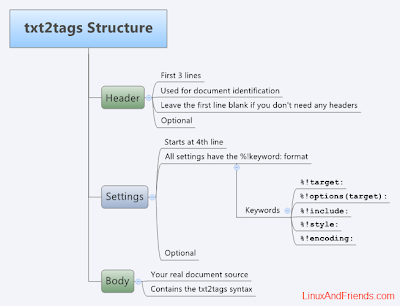
The first three lines are reserved to the title, the author and the version. If one or all of these are missing just leave them blank. The next lines can be used for the configuration area, e.g. the format you want to render the document in. In the Nanonote implementation, the %!target: tag is required. You can put any supported format there, like tex (LyX) or html (OpenOffice). If you want to generate a Table of Contents, you can add:
%!options: --toc

After that your text follows. Simple tags like "**", "+", "//" are used to indicate bold, bulleted list, italic, others can be used to indicate numbered or unnumbered section headers. You'll get the hang of it soon enough, it's very intuitive.

When you're done, you simply hit the [ESC]-C key and within a few seconds you're done. You can now transfer it to your main machine by using the uSD card or scp. Done.

This is how it looks in OpenOffice:


And this is LyX:


Well, that's it for now, but I'll be back soon with some more unexpected uses for the Ben Nanonote that go beyond the "Barbie notebook for little girls with too much money". Have phun!